Open topic with navigation
Using Text View
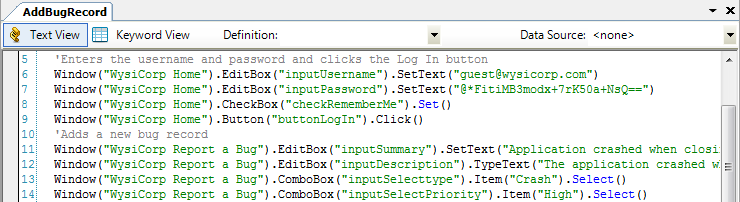
Text View displays scripts in a text-based editor and gives you access to the scripting language. Each script line in Text View is a statement, which specifies how QA Wizard Pro interacts with the tested application.
Note: You can customize the font and colors used in Text View. See Setting Text View font and color options.
Use one of the following methods to work with statements in Text View.
- Use the GUI statement editor. To add a statement, choose Script > Add Statement. To edit a statement, choose Script > Edit Statement. If you are a new QA Wizard Pro user, you may want to use the GUI statement editor.
- Use code completion, which displays the available statements or actions as you type.
- Manually type the statement.
Tip: A sample workspace that includes both web and Windows scripts is installed with QA Wizard Pro. To learn more about Text View, you may want to open a sample script, read the comments, and experiment with the functionality. See Sample scripts and applications.
Understanding script syntax
Each statement has its own syntax rules. If you do not follow these rules, errors are returned when you run the script. Keep the following in mind:
- Each statement must be on one line.
- Enclose text string values in double quotation marks (e.g., "TextString").
- Do not use any quotation marks with variable or numeric values.
- To specify a menu item by index, enclose the index number in square brackets ([]). For example, Window("WysiCorp CRM").Menu("MenuBar").Item("Options/[4]").Select().
- The following escape characters are supported for all string literals: \n, \r, \t, \\, \' and \".
- Slashes in menu, ListView, and tree control text must be escaped for literal interpretation during playback.
- Escape forward slashes with two backslashes (\\). For example, the following statement selects the 'Find/Replace' item in the Edit menu: Window("Window").Menu("MenuBar").Item("Edit/Find\\/Replace").Select().
- Escape backslashes with three backslashes (\\\). For example, the following statement selects the 'Backlash -\' item in the Character List tree: Window("Window").Tree("List").Item("Character List/Backslash - \\\\").Select().
- The scripting language is not case sensitive, with the following exceptions: when comparing strings in conditional statements or using the Checkpoint or Chr statement to check strings.
- You can add spaces to a script to improve readability (e.g., it may be easier to read x = 10 than x=10).
- Keywords, such as constants or strings, are displayed in different colors to help with readability.
Note: You cannot switch between Keyword View and Text View until any syntax errors, which are displayed in the Errors pane, are resolved.
About code completion
Text View's code completion feature displays the available statements or actions as you type.
- Enter an equal sign (=) to display a list of functions, which return values. Scroll through the list to select the function to use. Double-click the function or press Enter to add it to the script. Many functions are also available in the GUI statement editor.
- Press the spacebar at the beginning of a line to display a list of all statements. Scroll through the list and click the statement you want to use. Double-click the statement or press Enter to add it to the script.
- Enter a period (.) after a window or control to display a list of actions or objects. The items in this list change based on the selected window or control. Scroll through the list to select the action or object you want to use. Double-click the action or object or press Enter to add it to the script.
- Enter Script and a period to display a list of script actions.
- Enter Browser, a web page name in quotes (optional), and a period to display a list of browser actions. For example, Browser("WysiCorp Login").
- Enter Window, a window name in quotes, and a period to display a list of window control types, such as Button or Listbox. For example, Window("Feedback").
- Enter Window, a window name in quotes, a period, a control type, a control name in quotes, and a period to display a list of control type actions, such as Click or TypeText. For example, Window("Feedback").Editbox("editboxCompany").
 See also


